University of Baltimore
Merrick School of Business
INSS 453/753 - Internet and Network Security

Mini-project 5: scanning for remote control, Trojans and rootkits.
Testing Internet users and setup of a firewall.
All mini-projects are due on Mondays by 11 PM.
This project can be done using the PCs of members of the group, or one PC in the MISLAB and one PC of one of the members of the group.
- Install VNC client in the MISLab, or in one of the group members' PC, and VNC server in another PC from a group member. Note: if the PC with the VNC server installed uses a dynamic IPaddress, type ipconfig or similar at the shell/DOS prompt in the server PC. Let the other group member(s) know the current IP address so that a connection can be established between VNC client and server. Capture the screen of the client PC after the connection was established.
- Use Nmap SYN Stealth (other forms of scans and tools may be seen as an attack) to scan the PC hosting VNC (of a group member) for remote control software open ports as seen in class. You should find an open port for VNC in the PC. Show me the results of the scan.
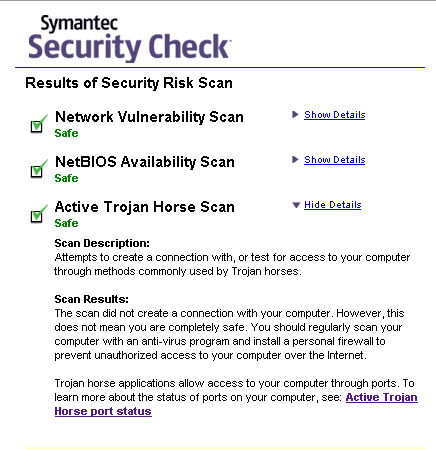
- Use the on-line Symantec check to see if the MIS Lab or the PC you are using has any known Trojan, or backdoor programs listening for commands. Show me the results you obtained, similarly to what we saw in class. Can you trust completely in these results, Why (yes or no)?
- Use Nmap or SuperScan to scan your PC at the MIS Lab, or to scan a PC of one of the group members, for Trojans. Be sure to build a table of Trojan ports based on the references given in class. Show me (include in your report) the results you obtained and the table you used.
- Download and intall RootkitRevealer and check if your MIS Lab or home PC has a persistent rootkit. Why should RootkitRevealer be run as a service?
- Install Zone Alarm in Windows. Define which hosts are in your LAN and capture the image. Set the security level to low in the LAN and high in the Internet. Use telnet, ftp and a browser, see what happens (get one image) and authorize their use. Show me the list of authorized programs to access the Internet. Download and install the LeakTest. Run the Leak Test and show me the result.
- Use one of the CGI scanner tools available at PacketStorm, e.g. CGI Scanner, and check the MIS web server for vulnerabilities, including the ones in this this class slide).
- Read this article on ASP security issues accessing SQL server, and this other on using ACCESS with ASP. Finally, read this article on IIS and SQL security. Summarize and explain the issues of security of IIS, ASP and data bases.
- Install Internet Explorer 8.0 and using the information seen in class (see this slide) restrict or disable ActiveX and scripting in the Internet zone. Then, include some of your favorite sites which use scripts (e.g. Microsoft update) in your Trusted Sites zone. Show me the final results. Explain the IE's cross-domain security model and why the IFRAME tag poses a security risk in IE.
- Explain how can you protect users of Outlook/OE from address book worms. Give example in a demonstration machine with OE. You can use a home or a MIS Lab PC for the demonstration. Why is important to disable "Safe for Scripting" in OE?
Submitting the report
- Open Firefox or Internet Explorer in Windows, and post your group project report in the Mini-project 5 entry of the Assignments folder of one of the group members in WebTycho.
- Use a screen capture software to capture some of the screens you saw as result of the above assignment items. Include the images in the final report.
- You should submit just one file per group in MS Word format.
This page is maintained by Al Bento who can be reached at abento@ubalt.edu
This page was last updated on November 15, 2009. Although we will attempt to keep this information accurate, we can not guarantee the accuracy of the information provided.