Basic concepts
- basic audio formats
- why streaming is necessary?
Regular sound files need to be fully downloaded before you can listen to them, and are not compressed to speed the transmission. Audio streaming is highly compressed and start playing after a small part is downloaded. - a simple example
System requirements
- sound board (most new PCs have, add-on $50-90)
- microphone ($15-$30)
- Sound recorder (Windows applet)
- Real Audio Encoder (free download)
- Real Audio Player (free download)
Recording and Encoding
- Open Sound recorder (Start, Programs, Accessories, Multimedia)
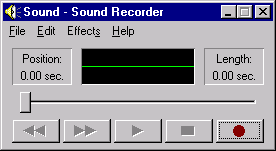
- Record your message (at least an outline is needed)
- Save giving a name to the file (the extension will be . wav)
- Open the Real Audio Encoder (install placed an icon on the desktop)
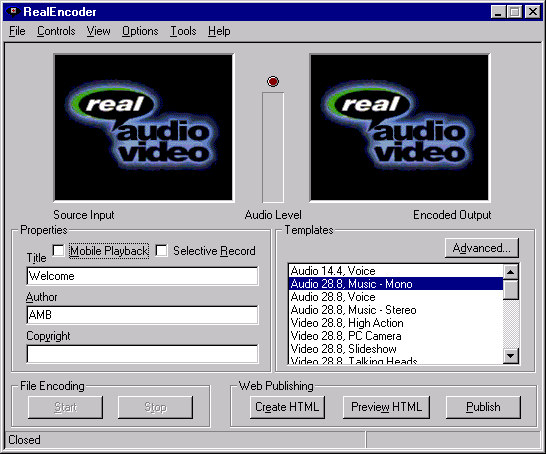
- Browse, select the file and click on start encoding
- A file of the same name will be created with the .ra extension
- Compression (about 12 to 1) and streaming will be done automatically
Publishing the audio file
- upload the fname.ra sound file to your account in the Web Server (you will not be able to do so as a student)
- create a file fname.ram with just one line => pnm://server.xxxx.xxx:7070/fname.ra
- upload this file your web directory in your regular Web page server
- create a link in your page to http://yourURL/fname.ram, e.g. http://webteach.ubalt.edu/wtl.ram
- upload your page to your web directory in your regular Web page server.