Step1
Download CoffeeCup Free FTP software from www.tucows.com and install it on your home computer. You can also use the one provided by UB but the use is restricted within the UB network.
|
|

Step1
Download CoffeeCup Free FTP software from www.tucows.com and install it on your home computer. You can also use the one provided by UB but the use is restricted within the UB network.
|
|
Step 2
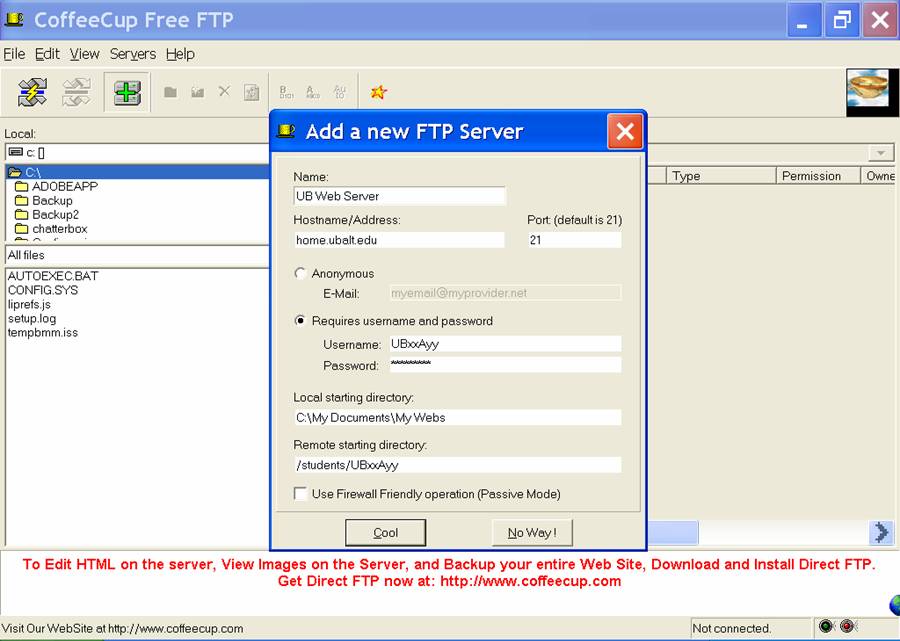
Click on the third icon “Add FTP server” on the menu bar and add a new FTP server. If you are connecting to the UB Web Server to load your webpage then follow the instructions as shown below:
1. Type any Name (in this case UB Web Server) to denote the FTP server you want to connect to.
2. Type in the host name as home.ubalt.edu. Leave the default port # as shown.
3. Your username will be "UBxxAyy" (which is your UB NT Account user name)
4. Type in your password (which is your UB NT Account password)
5. If you know your “Local starting directory” then type in the path. Example: C:\My Documents\My Webs if that’s where you store your web pages. The path can be changed anytime once you are connected to the FTP server.
6. Your remote starting directory will be: /students/UBxxAyy where UBxxAyy is your UB NT Account user name.
7. Click "Cool"
|
|
Step 3
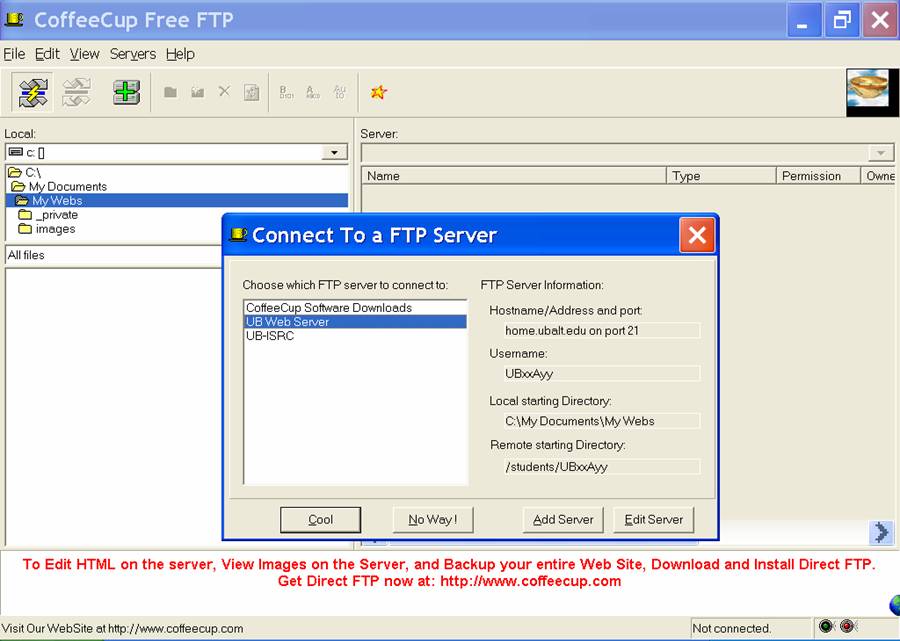
Click on the first icon “connect” on the menu bar and choose the FTP server you want to connect to (in this case the UB Web Server). Click on “Cool” and now you will be taken directly to your “UBxxAyy” folder under “students” directory. Note: Make sure you are connected to the internet before you proceed to Step3!
|
|
Step 4
Once you are connected you can “click and drag” your “index” webpage from your local computer (shown under Local) to your folder (shown under Server).
NOTE:
If you are using the one of the UB Lab computers on campus just copy your webpage "index" to your folder "UBxxAyy" under the “students” directory in the H:\ logical drive.